
It usually starts with small, nagging frustrations. A file that takes forever to open. A broken VLOOKUP that brings everything to a halt. The endless "which version of this file is the real one?" debate.
These aren't just minor inconveniences; they're the classic warning signs that your business is straining under the weight of its spreadsheets. Making the move from Excel to a database isn't just a tech upgrade at this point—it's a necessity.
When Your Business Outgrows Excel Spreadsheets
For countless businesses, Excel is the go-to tool for just about everything, from managing contact lists to building financial models. It's familiar, everyone has it, and it’s incredibly flexible for small-scale work. But as a company scales, the volume and complexity of its data grow right along with it, and Excel's simplicity quickly becomes a major liability.
The very tool that once felt empowering now creates bottlenecks, slows down your team, and puts the integrity of your data at risk. The transition to a proper database becomes critical when the workarounds and quick fixes start costing you more than just time.
The Tipping Point for Data Migration
The most talked-about technical limit is Excel's cap of 1,048,576 rows per sheet. That sounds like a lot, and it is, but businesses in fields like e-commerce, logistics, or marketing can hit that ceiling much faster than they anticipate.
Honestly, though, the real problems usually show up long before you get anywhere near that final row. The issues are more subtle—operational friction that quietly drains resources and kills efficiency day after day.
This isn't just a feeling; it's a well-documented struggle. Surveys show that over 70% of mid-sized companies report significant inefficiencies directly caused by relying too heavily on Excel. These problems cost them an average of 15-20% in lost productivity annually, mostly from all the manual effort spent trying to patch together data from different disconnected files. You can dig deeper into why companies modernize in this analysis of spreadsheet limitations.
Common Scenarios Signaling It's Time to Change
The realization that you need a database usually comes from experiencing the same headaches over and over again. If any of these sound painfully familiar, your business has almost certainly outgrown spreadsheets:
- Collaboration Chaos: Your sales and marketing teams are simultaneously editing different versions of the same customer list. This is a recipe for conflicting data, duplicated work, and the complete loss of a "single source of truth."
- Data Integrity Risks: A simple copy-paste error or an accidental deletion can corrupt mission-critical information, and there’s no audit trail to figure out what happened. Unlike a database, Excel has no real safety nets like validation rules or access controls to protect your data.
- Performance Degradation: Your files have become painfully slow. They take ages to load, filter, or run calculations because they’re bloated with data and complex formulas. This sluggishness grinds daily tasks to a halt and makes getting timely insights impossible.
- Inability to Scale: You simply can't perform complex queries, join different datasets together effectively, or generate the kind of real-time reports you need. Your ability to get meaningful business intelligence from your own data is severely capped.
A dedicated database or CRM isn't just a bigger spreadsheet. It's a structured system built from the ground up for data integrity, security, and simultaneous access by your whole team. It’s the foundation you need for scalable operations and reporting you can actually trust.
For businesses that rely on client relationships, these problems are even more pronounced. Professional services firms, for example, depend on having accurate, centralized client data for everything from managing projects to sending invoices. For them, a proper database is non-negotiable. You can learn more about how a CRM for professional services firms is designed to solve these exact challenges.
Ultimately, moving from Excel to a database is the first real step toward building a data infrastructure that supports your growth instead of holding it back.
Getting Your Excel Data Ready for a Flawless Import
The success of your entire move from Excel to a database hinges on one simple truth: the quality of your data. Think of it like cooking. If you start with bad ingredients, you’ll get a bad meal, no matter how fancy your kitchen is. It’s the classic "garbage in, garbage out" problem, and it’s completely avoidable.
Before you even dream of clicking that "import" button, you need to put on your detective hat and get forensic with your spreadsheet. Your mission is to clean, standardize, and structure your data so the database can make sense of it. Spending time here, upfront, is the single biggest thing you can do to prevent headaches and errors down the road.
This is the journey most people take—from the chaos of messy spreadsheets to the clarity of an organized database.
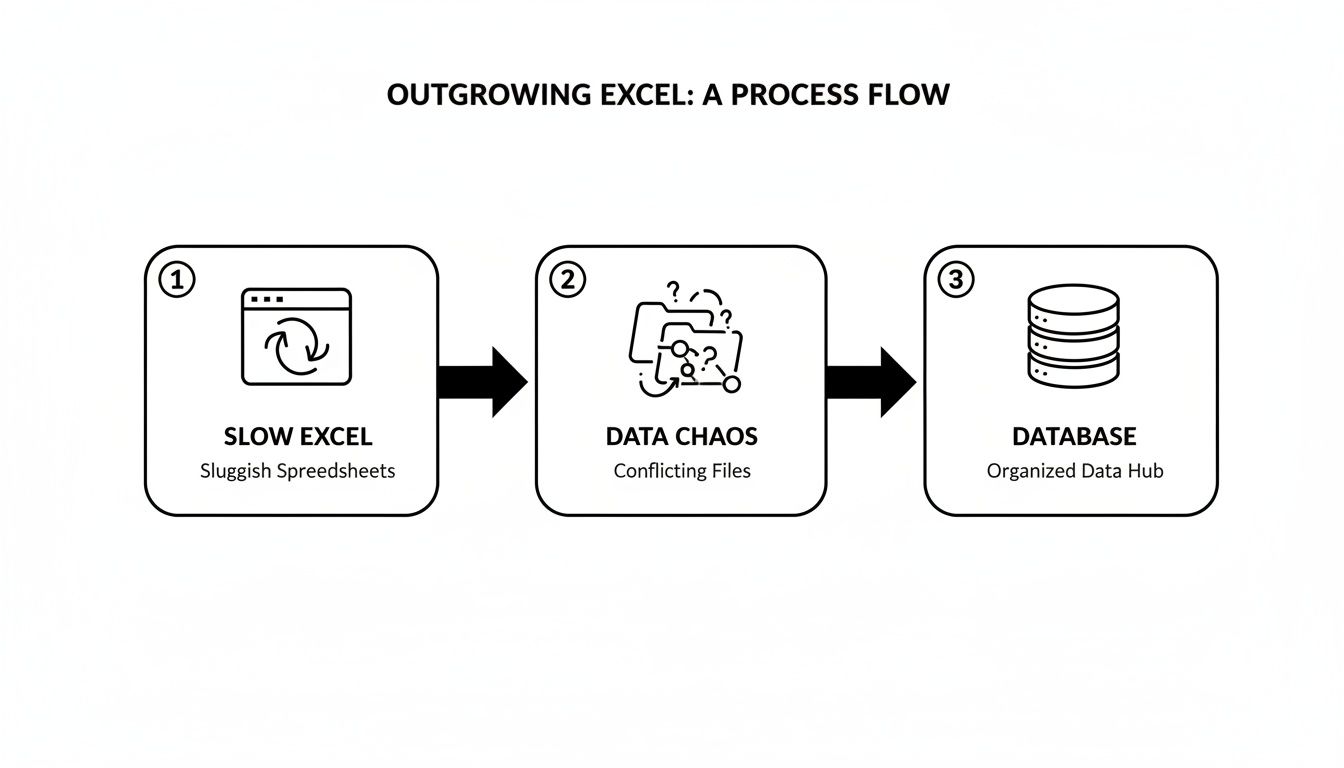
As you can see, that tipping point is usually reached when conflicting files and slow performance just become too painful to manage.
Tackling the Most Common Spreadsheet Messes
Excel's flexibility is both its greatest strength and its biggest weakness. It’s great for jotting things down quickly, but over time, that flexibility leads to a mess of inconsistencies that will choke any database import tool. Your first job is to hunt down these common issues.
Merged cells are public enemy number one. They might look nice for a report header, but they're poison to a database. Databases need a simple, predictable grid—one piece of data per cell. Merged cells break that fundamental rule and are a top cause of import failures.
Next up is standardizing your entries. Take a look at your "State" column. Do you see "CA," "Calif.," and "California"? A human knows they mean the same thing, but a database sees three completely different values. You have to pick one format and stick with it for the entire column.
Here's a sobering thought: data migration studies show 85% of projects fail because of things like duplicates and formatting problems—the very issues common in spreadsheets. Even worse, those innocent-looking merged cells are responsible for a whopping 40% of all import errors.
Re-structuring Your Data for a Database World
Once you’ve cleaned up the mess, it's time to think like a database. This means making sure your spreadsheet's structure follows basic database rules. Every column needs to represent one specific field (like "First Name"), and every row should represent one unique record (like a single customer).
One of the most powerful changes you can make is adding a unique identifier. Every database needs a primary key—a unique ID for each and every row—to tell records apart. You can easily create this in Excel. Just add a new column and fill it with a simple sequence of numbers (1, 2, 3…) to give every row its own ID.
Here's a quick checklist to get your spreadsheet properly structured.
Essential Excel Data Cleaning Checklist
Before you even think about importing, run through this checklist. It will save you from countless errors and a lot of frustration.
| Cleaning Task | Why It's Important | Quick Excel Tip |
|---|---|---|
| Eliminate Merged Cells | Merged cells confuse import tools because they break the one-cell, one-value rule. | Select the entire sheet, click "Merge & Center" drop-down, and choose "Unmerge Cells". |
| Split Combined Data | A "Full Name" column should be "First Name" and "Last Name" for better sorting and filtering. | Use the "Text to Columns" feature under the Data tab. You can split by a space or comma. |
| Use a Single Header Row | Your file must have one, and only one, header row at the very top. | Delete any extra title rows, blank rows, or subtitles above your column headers. |
| Remove All Duplicates | Duplicate rows create messy, unreliable data and skewed reporting in your new database. | Go to the Data tab and use the "Remove Duplicates" tool. Select all columns to check for identical rows. |
| Standardize Data Formats | A "Date" column must contain only dates; a "Phone" column should have consistent formatting. | Use "Format Cells" to set the right data type (Date, Number, Text) for each column. |
| Add a Unique ID | Every record needs a unique identifier (primary key) to be managed properly in a database. | Add a new column called "ID" and fill it with a sequence of numbers (1, 2, 3…). |
| Fix Inconsistent Text | "CA" and "California" are different to a database. You need one standard value. | Use "Find and Replace" (Ctrl+H) to standardize common variations throughout a column. |
Working through these tasks methodically transforms your spreadsheet from a loose collection of information into a structured, predictable dataset that's ready for its new home.
If you want to see what this clean, structured data looks like in action, check out these practical CRM database examples. It’s a great way to visualize the end goal you're working toward.
Choosing Your Export and Import Method
Alright, your data is clean, organized, and ready to move out of its spreadsheet home. Now for the actual transfer—the part where we get the information out of Excel and into your database. The good news is you don't need a degree in database administration for this. Most modern systems have made this process incredibly accessible.
The most bulletproof method, and the one I always come back to, is exporting your data as a Comma-Separated Values (CSV) file. Think of a CSV as the universal translator for data. It strips away all the fancy Excel formatting—the colors, formulas, and merged cells—and leaves behind just the raw, structured text that databases love. Its beautiful simplicity is what makes it compatible with pretty much any database or CRM on the planet, from MySQL to Salesforce.

Exporting to CSV The Right Way
Making a CSV in Excel is a cinch. Just navigate to File > Save As and pick "CSV UTF-8" from the dropdown list of file types.
Let me repeat that: use the UTF-8 version. This is a non-negotiable detail. UTF-8 is a character encoding that can handle international symbols, accents, and even emojis. Choosing this option prevents your special characters from turning into a mess of question marks (????) after the import. It’s a tiny click that can save you a massive data corruption headache down the road.
One final gut check before you hit save: make sure you're on the right worksheet. A CSV file can only save the contents of a single sheet, so double-check that the active tab is the one you so carefully prepared.
Working With Database Import Wizards
With your shiny new CSV file in hand, the next step is to fire up your database or CRM's built-in import tool. Whether you're using something like MySQL Workbench, SQL Server Management Studio (SSMS), or the importer inside your CRM, you'll almost always be greeted by a user-friendly "Import Wizard."
This wizard is where the magic happens. It walks you through two critical steps: field mapping and data type assignment.
- Field Mapping: This is simply telling the new system where to put everything. You’re essentially drawing a line from the "Email Address" column in your CSV to the "contact_email" field in your database.
- Data Type Assignment: Here, you define what kind of data is in each column. Is it text? A number? A date? Getting this right is crucial for ensuring your data is usable later on for things like calculations and reports.
Matching Data Types for a Smooth Transfer
Assigning the correct data type is the bedrock of a successful import. You can't just shove data anywhere you want. If you try to import a customer's name into a field designed for numbers, the whole import will grind to a halt—or worse, succeed but with corrupted data.
You’ll see a few common data types pop up again and again. Here’s a quick cheat sheet for how they usually line up with your Excel columns:
| Data Type in Database | What It's For | A Typical Excel Use Case |
|---|---|---|
| VARCHAR or TEXT | Text of pretty much any length. | Names, addresses, descriptions, SKUs. |
| INT or INTEGER | Whole numbers (no decimals allowed). | Customer IDs, product quantities. |
| DECIMAL or NUMERIC | Numbers that need to be exact, like money. | Prices, salaries, financial data. |
| DATE or DATETIME | Just what it says on the tin: dates & times. | Order dates, birthdates, log timestamps. |
Don't rush through this part of the import wizard. Take a minute to carefully review each column from your CSV and match it to the most logical data type. This simple diligence ensures your data lands safely, stays accurate, and is ready to be put to work in its new database environment.
Advanced Migration and Automation Strategies
A one-time data dump is a great start, but what about next week? Or the week after? If your data is constantly evolving, manually re-importing files is a recipe for frustration and errors. It's time to move beyond a simple Excel to database transfer and build a living, automated connection.
When you're dealing with massive datasets, raw speed is everything. For this, nothing beats your database's native bulk loading commands. For example, SQL Server's BULK INSERT command can gobble up millions of rows from a CSV file in a tiny fraction of the time a standard import wizard would take. It skips a lot of the usual row-by-row processing, making it the perfect tool for initial migrations or heavy-duty data loads.

Think about scenarios where you have gigabytes of historical data to move. This is exactly what those commands were built for—getting your initial data seeding done fast.
Creating a Living Data Connection
While bulk imports handle sheer volume, true efficiency comes from automation. The real goal is to get to a point where you never have to manually enter data again. Instead of treating your spreadsheet as a static file for periodic updates, think of it as an endpoint that constantly feeds your database.
This is where tools like Zapier or Make (formerly Integromat) are game-changers. They act as a bridge between your apps, letting you create automated workflows (often called "Zaps" or "Scenarios") without writing a single line of code. You can set up a trigger, like a new row being added to a Google Sheet, and an action, like creating a new record in your database.
Suddenly, your database is no longer a static archive. It’s a dynamic system that's always current.
A Real-World Automation Scenario
Let’s get practical. Imagine a customer support team that tracks incoming tickets in a shared Google Sheet because it's quick and easy. Every day, someone has to copy-paste that information into the main customer database. It's a boring, time-consuming chore that’s begging for mistakes.
Here’s how an automated workflow blows that process up:
- The Trigger: A support agent adds a new row to the "New Tickets" Google Sheet.
- The Action: Zapier sees the new row instantly. It grabs the customer's email, the ticket description, and the priority level and automatically creates a new support ticket record in the company's SQL database.
- The Result: The customer's record is updated in real time. No human intervention needed. The support manager can pull reports from the database, confident that the data is always 100% up-to-date.
This hands-off approach ensures your data is consistent and frees up your team to focus on their actual jobs, not tedious data entry. It’s a foundational step toward building a more scalable and efficient operation.
For any business trying to connect sales, support, and marketing data, this kind of automation is non-negotiable. Implementing customized CRM software that supports these direct integrations can centralize every customer interaction automatically. This gives you a complete, 360-degree view of the customer journey without the manual legwork, turning your database from a simple repository into an active, intelligent hub for your entire business.
Dealing With Those Inevitable Import Errors
Sooner or later, it happens to everyone. You’ve cleaned your data, mapped your fields perfectly, and you hit "Import." Then, bam—a big red error message pops up. Don't sweat it. This is a normal part of the process, and these cryptic warnings usually point to one of a few common, and easily fixable, problems.
One of the most common errors you’ll run into is data truncation. It sounds technical, but it just means your text is too long for the space you’re trying to put it in. Think of it like trying to cram a king-sized comforter into a shoebox.
For instance, your CRM's "Address" field might be limited to 100 characters, but you have a few addresses in your spreadsheet that are 120 characters long. The database simply can't fit the extra characters and throws an error. The fix is to either shorten the entry in your Excel file or adjust the field length in your database if you have that control.
When Data Types Don't Match Up
Another classic issue is a data type mismatch. This is when the data in your CSV column is the wrong "type" for the database field. You can't put a word where a number is supposed to go, or a date where text is expected.
You'll see this happen in a few predictable ways:
- Trying to import a "Product ID" like
ABC-123(which is text) into a field that only accepts numbers (anINTEGERfield). - A stray "N/A" or "TBD" in a column of prices that you’re trying to import into a currency or
DECIMALfield. - Dates are a huge source of these errors. Your spreadsheet might say "Mar 15, 2024," but the database is rigidly expecting the
YYYY-MM-DDformat.
The solution is almost always to go back to your source file. Hunt down the problematic cell in your Excel sheet and fix the entry. Sometimes, the import tool itself will let you change the data type for that column on the fly during the mapping step, which can also save the day.
You'll also likely encounter a "primary key violation." This error is a showstopper, and it means you're trying to add a new record with an ID that already exists in the database. In 99% of cases, this is caused by a duplicate row you missed during your initial data cleaning.
To fix this, head back to your spreadsheet and use the "Remove Duplicates" feature one more time, but this time, run it only on the column you're using as the unique ID. This simple check is often all it takes to clear the error and get your excel to database import moving again.
Still Have Questions About Moving from Excel to a Database?
You've successfully moved your data, but that’s often just the beginning. It's totally normal to have some lingering questions about what this change means for your team's day-to-day work. Let's tackle some of the most common things we hear from people making this exact transition.
Think of it this way: you’re not just moving files around. You’re building a more reliable, scalable system for your business to grow on. We see this all the time—companies hit a wall with Excel's clunky collaboration, where version control issues pop up 60% of the time for teams. It's no wonder that 52% of companies are moving their work to more robust cloud systems. For a deeper dive into these kinds of challenges, check out this detailed data transformation report on Integrate.io.
What's the Best Database to Use?
Honestly, the "best" database is the one that fits your specific situation. There's no single right answer.
- For most small to medium-sized businesses, you can't go wrong with powerful, free options like MySQL or PostgreSQL. They're industry standards for a reason.
- If your team already lives in the Microsoft world, sticking with SQL Server will feel like the most natural and seamless choice.
- Looking for less hands-on maintenance? A cloud database like Amazon RDS or Google Cloud SQL is a great pick. They handle all the backend headaches for you, so you can just focus on your data.
Can I Keep My Excel Formulas?
Short answer: no. Excel formulas and functions won't carry over into your new database. You'll need to rebuild the logic behind those calculations using the database's native tools.
This usually means writing SQL queries to pull and calculate data on the fly. You might also create views (which are like saved queries that act as virtual tables) or stored procedures to handle more complex, repeatable calculations.
This might sound like a pain, but it's a huge upgrade. Rebuilding your logic in the database makes it far more powerful and trustworthy. Calculations are applied consistently across the entire dataset, so you never have to worry about one broken formula in a single cell throwing off your numbers again.
How Often Should I Be Syncing Data?
This really comes down to how critical the data is. If your sales or support teams need up-to-the-minute information to do their jobs, you'll want to set up an automated, continuous sync. For something like monthly financial reports, a manual import once a month might be perfectly fine.
The real goal here is to change how your team thinks about data. Your new database should become the single source of truth. Excel can still be a handy tool for quick, one-off analysis, but it should no longer be the permanent home for your most important business information.